Клиенты RDP для Android: что выбрать, как подключиться и как настроить безопасность
Это руководство поможет вам выбрать лучший RDP-клиент для Android и расскажет, как безопасно подключаться к серверам Windows, рабочим столам RDS/AVD и Windows 365 с телефона или планшета.
Если вам нужен сервер для удаленной работы, закажите готовый к использованию VPS на Windows с доступом по RDP и начните подключаться уже через несколько минут.
Зачем использовать RDP на Android?
Получите доступ к VPS / серверу Windows и рабочим столам RDS/AVD со своего телефона или планшета.
Вносите срочные изменения в CMS/1C/корпоративные приложения, когда ноутбук не под рукой.
Оказывайте поддержку клиентам: входите на сервер, перезапускайте службы и просматривайте журналы.
Приложение для Android — это лишь клиент. Серверная часть (Windows Server/Pro, RDS/AVD/Windows 365) должна быть настроена правильно: RDP включен, NLA активен, а учетные записи созданы с необходимыми правами. Примечание: Windows Home не поддерживает входящие RDP-соединения — вместо этого используйте VNC или другую технологию.
На что обратить внимание при выборе клиента
Официальный статус и поддержка: частота обновлений, совместимость с AVD/Windows 365/RDS.
Безопасность: NLA/TLS, поддержка RD Gateway, политика разрешений.
Удобство использования: жесты/мышь/клавиатура, режимы планшета и DeX, внешние мониторы (важно для Parallels).
Функции: буфер обмена/аудио, многосессионность, управление несколькими подключениями и секретами.
Цена: бесплатная версия против Pro/Enterprise (aRDP Pro, Parallels с RAS).
Рекомендуемые клиенты: что выбрать для конкретной задачи
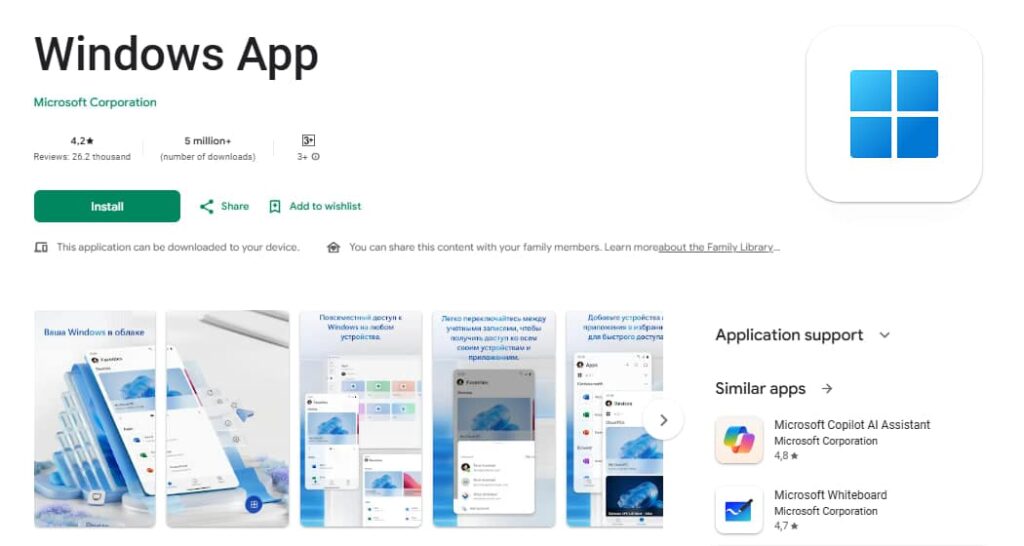
1) Приложение для Windows (официальный клиент Microsoft)
Официальный способ подключения к службам удаленного рабочего стола, Azure Virtual Desktop и Windows 365. Регулярно обновляется, поддерживает современные функции и работает на Android 11.
Плюсы: бесплатно, стабильно, NLA, мультитач, аудио/видео, поддержка Chromebook. Минусы: меньше расширенных функций «управления», чем в профессиональных наборах инструментов.
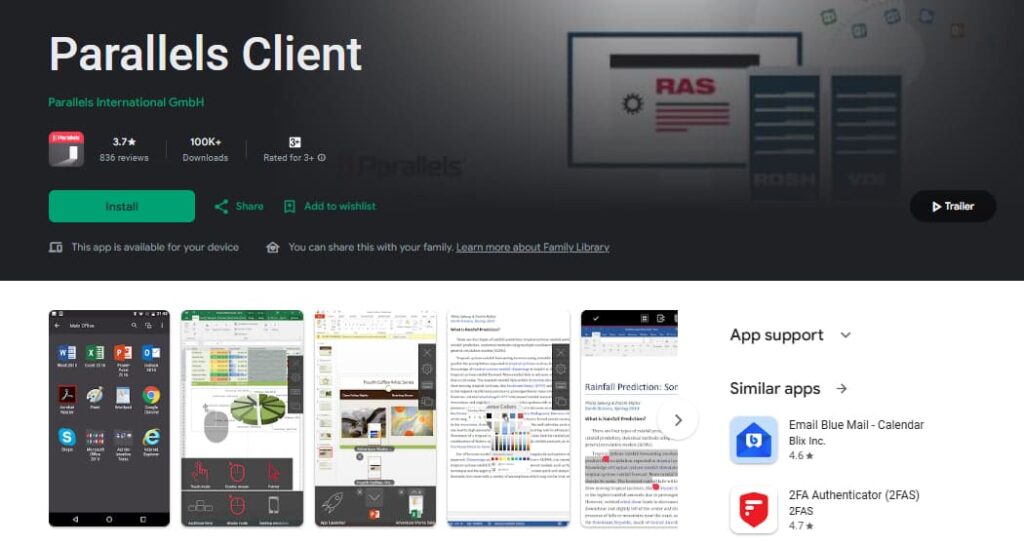
2) Клиент Parallels (Android) — если у вас есть Parallels RAS
Разработан для Parallels RAS: безопасный доступ к корпоративным приложениям/VDI, печать, централизованное управление, SAML/LDAP и поддержка внешнего монитора (v17.1).
Плюсы: мощные корпоративные функции и зрелая экосистема. Минусы: реальная ценность раскрывается в основном при использовании инфраструктуры RAS.
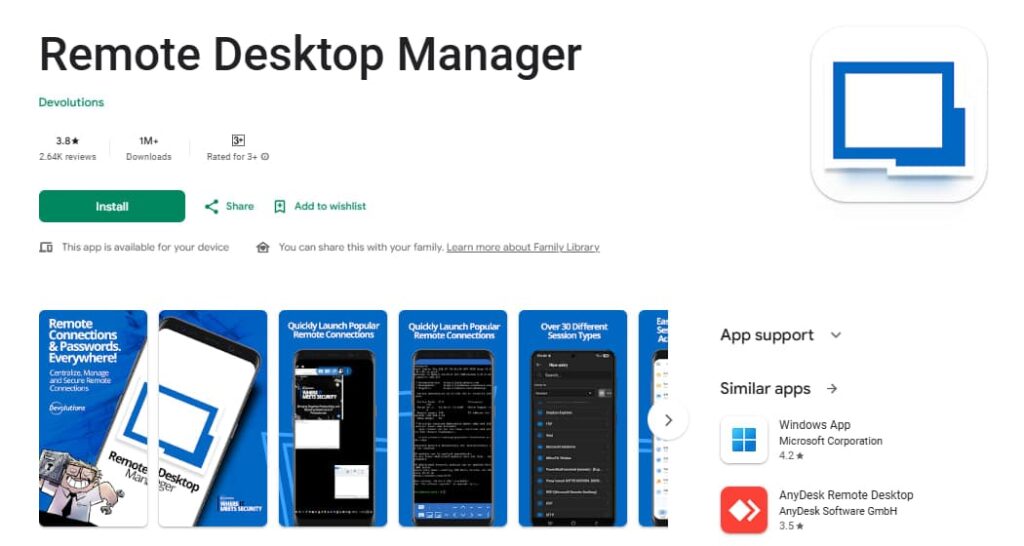
3) Remote Desktop Manager (Devolutions) — универсальное решение для профессионалов
Не только RDP-клиент, но и менеджерподключений и секретных данных: RDP/VNC/SSH и многое другое, плюс интеграция с менеджерами паролей и IAM, поддержка RD Gateway и рабочие процессы автоматизации/CLI.
Плюсы: централизованное управление множеством конечных точек. Минусы: более сложный процесс освоения для новичков.
4) aRDP (бесплатное ПО с открытым исходным кодом) и aRDP Pro
Легкий клиент на базе FreeRDP/aFreeRDP, поддерживает SSH-туннелирование и предлагает гибкие настройки. В описании приложения обычно отмечается, что Windows Home не может выступать в качестве RDP-сервера — вместо этого используйте VNC/bVNC. Версия Pro добавляет больше жестов/разрешений и удаляет рекламу.
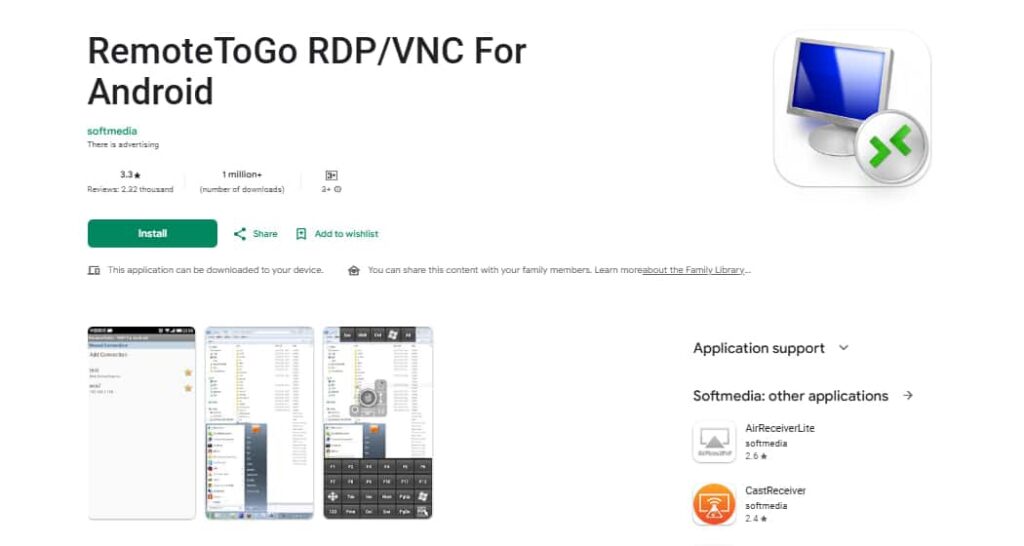
5) RemoteToGo — простая альтернатива (RDP/VNC)
Поддерживает как RDP, так и VNC. Просто настраивается, но интерфейс более старомодный. Основано на FreeRDP и обычно имеет базовую историю обновлений в магазинах приложений.
Пошаговая инструкция: подключение через приложение для Windows (Android)
Этот пример подходит для VPS/серверов с включенными RDP и NLA. Для AVD/Windows 365 используйте функцию «Рабочая область» в приложении.
Установите приложение Windows из Google Play и откройте его.
Нажмите «Добавить ПК» → введите IP-адрес или домен сервера и имя пользователя в формате DOMAINuser или user@domain (если используете AD/домен).
Убедитесь, что на сервере включена NLA (аутентификация на сетевом уровне). Она шифрует рукопожатие и требует аутентификации перед началом сеанса.
Сохраните профиль → нажмите на карточку подключения → подтвердите сертификат сервера при первом подключении (или установите свой собственный сертификат).
Что еще доступно в приложении для Windows:
Рабочие пространства (AVD/Windows 365) — добавьте URL рабочего пространства, чтобы получить доступ к опубликованным приложениям и рабочим столам.
Настройки экрана — разрешение, масштаб, ориентация, режим нескольких экранов (на поддерживаемых устройствах).
DeX/Chromebook — интерфейс, более похожий на рабочий стол, с поддержкой мыши/клавиатуры и внешнего монитора.
Производительность: как получить максимальную отдачу от мобильного подключения
Уменьшите разрешение и глубину цвета в профиле подключения.
Отключите анимацию и обои на удаленном хосте Windows и переключитесь на режим «Максимальная производительность».
Если наблюдается задержка, временно отключите звук и синхронизацию буфера обмена.
На Android настройте приложение на «Неограниченное использование батареи» (отключите агрессивный режим энергосбережения).
При нестабильном LTE используйте VPN: меньше проблем с маршрутизацией и NAT оператора; часто работает стабильнее.
Безопасность: действительно полезный чек-лист
Включите NLA на сервере; используйте надежные пароли и создавайте учетные записи только для необходимых пользователей.
Используйте RD Gateway для внешнего доступа, чтобы не открывать порт 3389 напрямую в Интернет.
Используйте VPN в общественных сетях; ограничьте права клиентов до минимума.
При первом подключении проверьте сертификатсервера (CN/SAN).
Для предприятий: MFA/SSO (Azure AD, RAS), журналы аудита и правила доступа на основе групп.
Распространенные проблемы и решения
Черный экран или длительная авторизация — проверьте NLA и учетную запись пользователя; временно отключите перенаправление устройств.
Не удается подключиться по имени — проверьте запись DNS/A; попробуйте подключиться по IP.
Обрыв соединения по LTE — уменьшите разрешение/частоту смены кадров, отключите звук и проверьте VPN.
Windows Home — не может принимать входящие сеансы RDP; используйте VNC/bVNC или обновите версию Windows.
Что выбрать — краткое резюме
Быстрый старт и «официальный Microsoft»: приложение для Windows.
Корпоративная среда с RAS: Parallels Client.
Множество протоколов и множество конечных точек: Remote Desktop Manager.
Легкое решение с открытым исходным кодом: aRDP (или aRDP Pro).
Простая альтернатива с VNC: RemoteToGo.
Разверните VPS с Windows для RDP
Нужен сервер, к которому можно получить доступ с Android через RDP? Приобретите готовый к использованию VPS на Windows и подключитесь безопасно за считанные минуты.