
*Cube-Host– full cloud services!!
EN
*Cube-Host– full cloud services!!

If your WordPress site “works fine,” it can be tempting to postpone updates. The problem: WordPress is one of the most common targets for automated scans, brute-force attempts, and plugin vulnerability exploitation. Updates aren’t only about features — they’re about closing security holes, improving stability, and staying compatible with modern PHP/server stacks.
Whether you run a small blog on shared hosting or a high-traffic project on VPS hosting, the safest update strategy is always the same: backup, update in controlled steps, verify, and keep a rollback plan.
This 10-minute checklist prevents 90% of “my site broke after update” situations.
If you’re on a Linux VPS, consider keeping a simple server-side backup method (snapshot or file/database dump) in addition to WordPress-level backups — this makes recovery faster when something goes wrong.
A backup is only valuable if you can restore it. For WordPress, you want (1) files and (2) the database. Files include wp-content (themes, plugins, uploads) and config files. The database includes posts, pages, settings, users, and plugin data.
| Backup method | Best for | Pros | Watch-outs |
|---|---|---|---|
| Hosting panel backup | Quick full restore | Often restores site + DB in one step | Check schedule + retention; test restore once |
| WP plugin (e.g., UpdraftPlus) | Non-technical owners | Easy, can store offsite (S3/Drive) | Plugin itself must be updated and configured correctly |
| Manual (files + DB export) | Advanced control | Transparent, works even if WP admin is down | Needs a clear restore procedure |
| VPS snapshots | Fast rollback | Very quick revert after failed update | Not a replacement for offsite backups |
Minimum restore test: download the backup and confirm it contains wp-content/uploads and a database file (or DB export). If you have staging, restore there once — that’s the real proof.
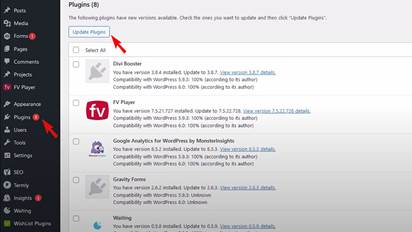
Dashboard updates are the simplest and safest option for most site owners, as long as you follow the staged approach: core → plugins → theme.
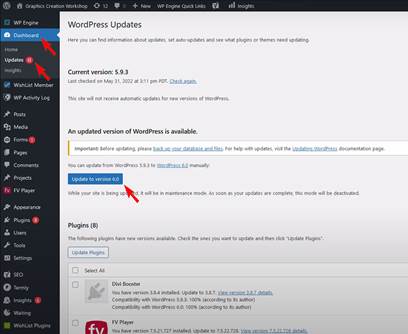
Pro tip: If you use many plugins, avoid “update all” on a production store. Updating in smaller groups makes troubleshooting dramatically faster.
Manual updates are useful when the admin dashboard is not accessible, when permissions break updates, or when you need complete control. This is especially common on VPS environments with custom setups.
wp-config.php and do not overwrite wp-content.wp-admin and wp-includes with fresh folders from the package./wp-admin/upgrade.php if WordPress prompts a database upgrade.If you host multiple sites or client projects, consider using a VPS control panel (or a managed environment) to simplify permissions, backups, and restore points. Cube-Host offers scalable VPS hosting options that fit this workflow well.
If you manage WordPress on a Linux VPS, WP-CLI is one of the most reliable ways to update without clicking around in the UI. It’s also easier to automate and log.
# Update WordPress core
wp core update

# Update all plugins
wp plugin update --all

# Update all themes
wp theme update --all

# Quick health check
wp core verify-checksums
wp site-health status
Best practice: still update in stages on production (core first, then plugins, then theme) — even with WP-CLI.
Even perfect planning can’t prevent every incompatibility. A rollback plan turns a scary outage into a routine fix.
wp-content/plugins./wp-admin.Regular, controlled updates keep WordPress fast, stable, and secure. If your site has outgrown simple hosting, moving to VPS hosting gives you more control over PHP versions, caching layers, backups, and security tooling — and Cube-Host makes it easy to scale when traffic grows.